DocBen Web App — User Guide
The DocBen web app is the no-code way to use DocBen's claim validation. Your team enters a claim in the browser, clicks Validate Claim, and sees every problem on screen — before the claim goes to PhilHealth.
Two ways to adopt DocBen. This guide covers Path A, the web app. If you would rather have your own system (HIS, EMR, billing software) send claims automatically, see Path B, the API integration guide. Both paths use the same validation engine and the same PhilHealth rules.
Open the web app: https://lrama1.github.io/docben-ai3/
🎬 Prefer video? Watch the 3½-minute demo — it creates a claim, validates it, reads the findings, fixes them, and re-validates.
⚠️ Early access. The web app is in alpha. All sample data in this guide and in the demo video is fictional.
What you get
- A step-by-step form for the PhilHealth CF4 claim, in six sections.
- Upload of supporting documents (images or PDF) alongside the claim.
- One-click validation with an AI Analysis panel that lists each issue and explains why.
- A 0–100 quality score, the rejection reasons, and the DRG classification once the claim is valid.
- Saved claims, so you can come back, fix, and re-validate.
Getting started
🎬 Watch how to create your account and sign in for the first time (under 2 minutes).
- Open the web app and create an account.
- Enter your registration code. Your DocBen administrator gives you a registration code that links your account to your organization. You need it before you can create claims.
- Sign in and open the claims page.
Creating and validating a claim
- Start a new claim.
- Fill in the six CF4 sections:
- Health care institution (HCI)
- Patient
- Reason for admission
- Course in the ward
- Drugs and medicines
- Outcome of treatment
- Attach supporting documents — for example lab results and imaging reports. The validator reads them and compares them with what the claim says.
- Click Validate Claim. Validation takes a few moments.
- Read the AI Analysis panel. Each finding names the problem and why it matters. Typical findings:
- a symptom or exam finding in the claim that no document supports
- doctor's orders that are missing
- an imaging or lab report that is referenced but not attached
- Fix the claim — edit the fields or attach the missing document — and click Validate Claim again.
- Repeat until the panel reads “This is likely valid.” The DRG classification is shown with it, and the claim is ready to submit.
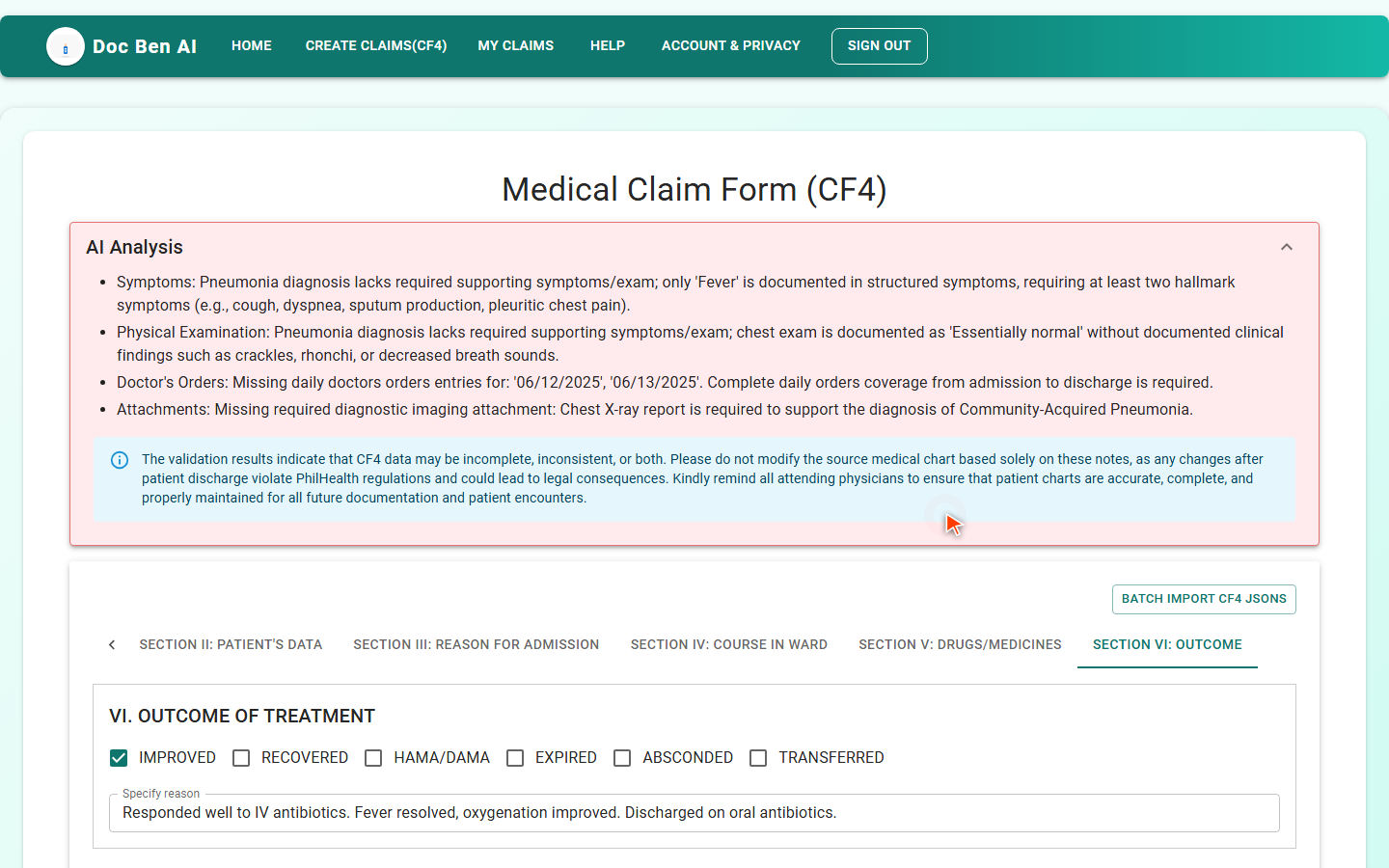 Before: four issues found. Each one says what is wrong and why.
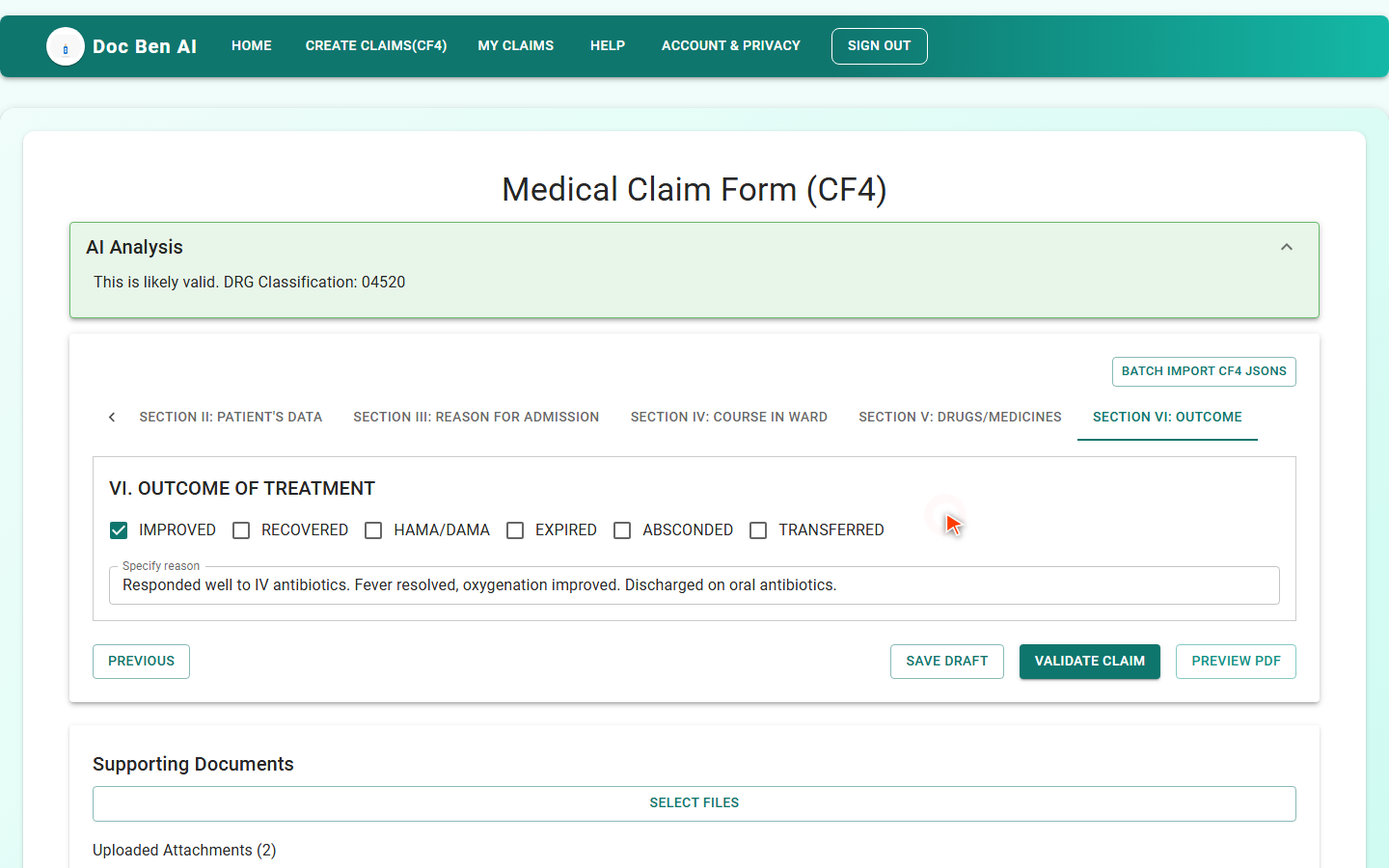 After the fixes: the claim reads as likely valid, with its DRG classification.
Tips
- Validate early and often. Re-validating after each fix is the quickest way to learn what the validator needs.
- Attach before you validate. Most “unsupported” findings disappear once the matching report is attached.
- Treat the result as a pre-submission check. It tells you what PhilHealth is likely to question; it does not replace your own review.
Need to integrate instead?
If you would rather send claims from your own software, use the DocBen API:
- API integration guide — authentication, quotas, endpoints, attachments, errors, FAQ
- Client examples — JavaScript and TypeScript
- Browser test client — try the live API from your browser
- OpenAPI spec
Questions about web app access? Contact your DocBen account manager.